An appointment booking website does one job: it lets a visitor pick a service, choose a time and confirm, without emailing you first. Everything else on the site exists to get them to that button. This guide builds one from scratch in an afternoon, using Vonza Scheduling for the booking part, and finishes with how to add booking to a website you already run.
Plan the pages first
Before touching a tool, write down your services as the client would book them. For each one: the name, the lengths you offer, the price per length, where it happens (video call, phone, your office, their place), and what you need to know before the appointment. That list becomes your booking pages, so it is worth ten minutes.
A booking website needs surprisingly few pages:
- Home: who you help, with the booking button above the fold.
- Services: one block per service with its length, price and a book button.
- About: a photo, a few lines, and the proof that you are good at this.
- Book: the booking page itself, or a directory of all your booking pages.
- Policies and FAQ: cancellation terms, what to bring, how video calls work.
If you are building the whole site on Vonza, the website builder handles pages one to three and five; this guide concentrates on page four, because it is the one that does the work.
Step 1: create the booking page
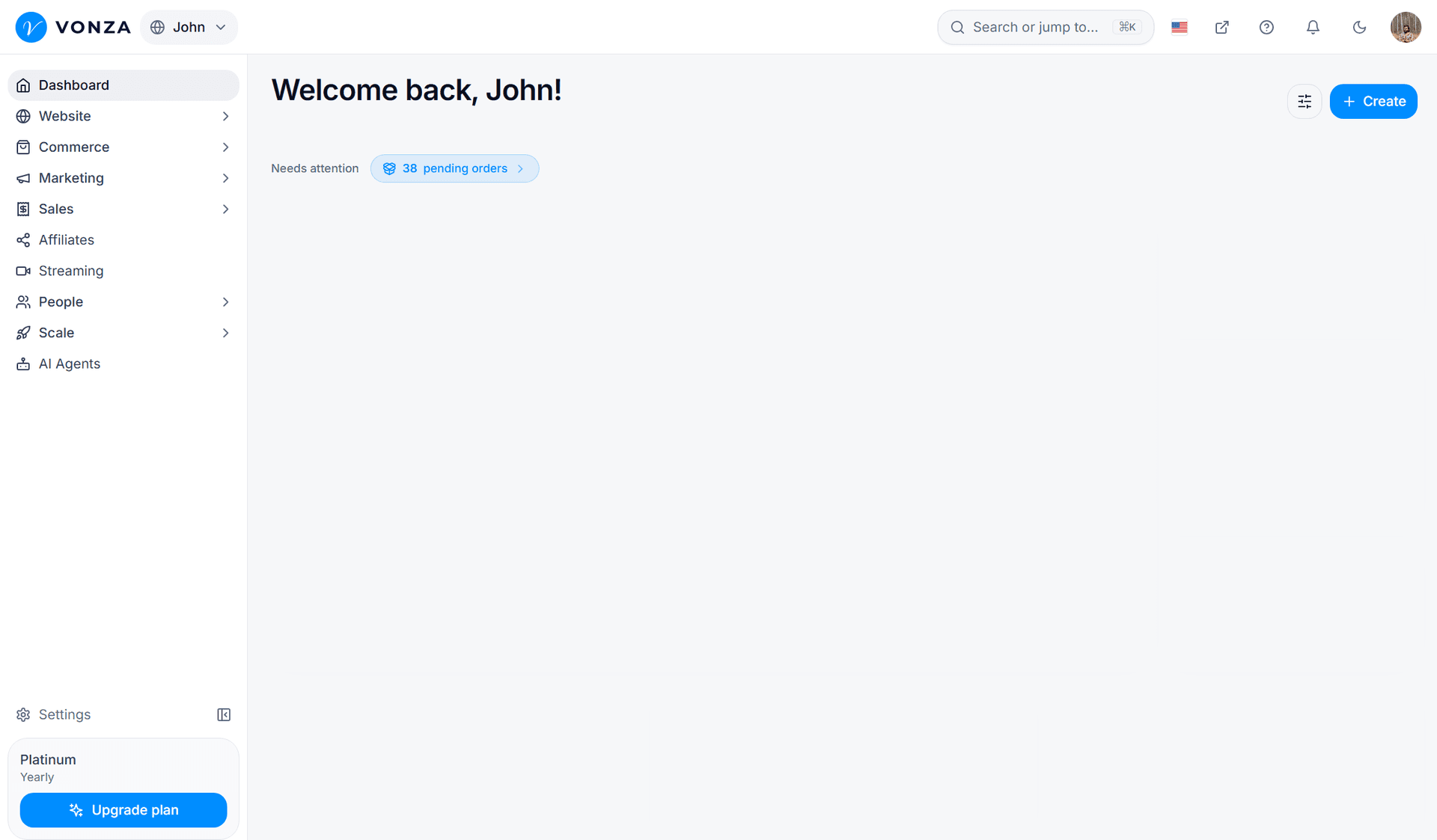
In your Vonza dashboard, open the Scheduling row with the New pill in the sidebar (the new Scheduling app; your classic meetings appear there too) and create a meeting. You can start blank, from one of 137 templates in 15 categories, or by describing the meeting in a line and letting Vonza AI draft it (that uses AI credits). The templates cover coaching, consulting, health, fitness, beauty, legal, finance, real estate, education and more, each with lengths, hours, questions and a photo already in place. Browse them on the scheduling templates page.
Choose the meeting type. Most appointment businesses use one-on-one; a class or workshop uses group with a seat count ("Spots per time") and an optional "Show spots left".
Step 2: lengths and prices
Add each length the service comes in, up to 12 per meeting, from 5 minutes to 24 hours. Each length has its own price, so "30-minute consultation" and "60-minute consultation" can sit on one page with different prices. Connect Stripe, PayPal or Paystack, then pick a price type per length: free, one-time, pay what you want, subscription, recurring, instalment, flexible, a deposit (part now, balance before the meeting) or a session pack (several sessions bought at once and booked with a code). Deposit, instalment and flexible prices need an eligible plan. The paid appointments page lists them side by side, and our guide to deposits and session packs goes into the two newest.
Up to five add-ons can sit at checkout (a workbook, extra time), with coupons if you use them.
Step 3: hours and rules
Set your weekly hours in a schedule you can reuse across meetings ("Mon–Fri, 9–5" is a preset), with date overrides for the exceptions. Then the rules that keep your day sane: a minimum notice (none, 1 hour, 4 hours or 1 day), buffers before and after each booking, a maximum number of bookings a day, and a booking window (the next 7 to 90 days, a date range or any time). Set how late a client may cancel or reschedule, from any time to 2 days before.
Block Time off for holidays and the days you are away, and nobody can book you then. If you see clients in person, lock the page's time zone to yours so there is no confusion; otherwise clients see times in their own zone.
Step 4: where the appointment happens
Pick the location from the Where menu: Vonza Stream, Zoom, Google Meet, Microsoft Teams, a phone call (you call them or they call you), in person at an address, a link you give, or "Ask the invitee" to let the client choose. A meeting can offer up to 11 locations. For Zoom, Google Meet and Teams, every booking gets its own joining link, moved when the booking moves and removed when it is cancelled. The Zoom integration page has the setup.
Connect your own calendar so you are never double-booked: Google Calendar, Outlook / Microsoft 365 or Apple iCloud (read only). Busy times in a connected calendar are never offered, and bookings are added to your Google or Microsoft calendar. See the Google Calendar integration.
Step 5: the questions you ask
Name and email are always collected, and phone when you are the one calling. Add up to 30 more questions from 13 types: short and long answers, multiple choice, checkboxes, dropdowns, phone, date, time, file upload (images, PDF, Word or text, up to 10 MB), a drawn signature, two kinds of grid and a text block. Mark the ones that are required. An intake form, a consent signature and "anything I should know?" are the usual three.
Step 6: make it look like your business
Pick colours from 16 curated pairs, set your own, or let the AI palette work from your brand colour (AI credits). Add your logo and a cover image. The page can be shown in 88 languages, and the words on the "Booked" screen are yours to change. A "Made with Vonza" badge appears on the public page; plans that allow removing Vonza branding have a switch to hide it. Check what your plan includes on pricing.
Preview on desktop and phone, fix anything the "Fix these first" checklist flags, and publish.
Step 7: confirmations and reminders
Confirmation, reminder and follow-up emails are on by default. The confirmation carries add-to-calendar links (Google, Outlook, Office 365, Exchange and an .ics file), the reschedule and cancel links, and your cancellation policy. Add a reminder for the evening before and another an hour before. If your plan has an SMS allowance, switch on Text reminders in Booking settings and texts go out too. Our guide on reducing no-shows has a schedule that works, and the appointment reminders page lists every option.
Step 8: your booking directory
Every published meeting is listed on your /book page, with the ones you mark Featured first, so one link covers all your services. A meeting you would rather not list publicly can be secret: hidden from /book, bookable only with the link. One-time links book once and then stop working, handy for a free session you give to one person.
Step 9: put booking on every page
Now the website. Whether the site is on Vonza or elsewhere, the share dialog gives you three embeds:
- Inline: the booking page appears inside your web page, where you paste the code.
- Popup widget: a floating button in the corner of every page that opens the booking page.
- Popup text: a text link anywhere in your copy that opens it.
Put the inline embed on your Book page, the floating button on every other page, and a text link in your services copy. Button text and colours are yours to set. The share dialog also gives you a QR code for printed material and a tab to add the meeting to your Link in bio page, which our guide on adding a booking link to your Instagram bio covers.
Step 10: what happens after a booking
Every client who books becomes a contact in your CRM, so follow-ups do not live in your inbox. Scheduling automations run on 16 triggers such as "New booking", "Booking paid", "Marked as no-show" and "After the meeting ends", with steps to email or text the client, tag them, add them to a list, send a webhook or enrol them in a course. A simple first automation: after the meeting ends, wait a day, then email a thank-you with the booking link for next time. See automations.
The new Scheduling also sends an optional 1 to 5 rating email after the meeting, and Analytics shows booked, completed, cancelled and no-show counts, busiest hours and revenue.
A checklist before you share the link
- Every service has its lengths and prices, and a test-mode booking went through.
- Hours, minimum notice, buffers and the booking window are set.
- Your calendar is connected and a busy slot does not appear on the booking page.
- The intake questions are the ones you actually need.
- The confirmation email reads well and the cancellation policy is in it.
- The booking page is embedded on your Book page and the floating button is on the rest.
- Reminders are set for the day before and an hour before.
Who this is for
Coaches, consultants, tutors, therapists, trainers, salons, clinics, churches and schools all build the same website with different words. The persona pages show the differences: scheduling for coaches, consultants, tutors, churches and schools.
Vonza Scheduling is included in every Vonza plan, with a 14-day free trial. If you are weighing it against other tools first, our guide to the best appointment scheduling software compares them with every price dated.