Tracking is how a funnel learns. The pixel tells the ad platform which visitors became leads and buyers, so it finds more people like them. The Google tag puts the funnel in your analytics beside the rest of your site. UTM tags tell you which post or email sent each lead. This guide sets all of it up on a Vonza funnel and explains what the funnel already measures without any of it.
What the Tracking tab holds
Every funnel in Vonza Funnels has a Tracking tab, described in the app as "Pixels and tags for every page. They run on live pages only." It has five fields:
- Facebook Pixel id. The 15 or 16 digit number from Meta Events Manager.
- Google tag id. Either a G- id (Google Analytics 4) or an AW- id (Google Ads).
- Google Tag Manager id. A GTM- container id.
- Code in the page head. Up to 10 KB of your own script or tags, sanitised.
- Code at the end of the page. The same, placed before the closing body tag.
Below the ids, Events to send lists Page view, Lead and Purchase (with the amount). Tick the ones you want. A Copy from platform settings button fills the fields from the ids you already saved for your Vonza site, so you do not type them twice.
Tags run on live pages only. Your draft, the 15-minute test link and a Test run do not fire events, so your own clicks never count as leads.
Step 1: add your Facebook Pixel
- In Meta Events Manager, copy the pixel id (the digits, not the script).
- Open the funnel, go to Tracking and paste it into Facebook Pixel id.
- Tick Page view, Lead and Purchase.
- Publish.
The funnel sends Lead when someone completes an opt-in, webinar or application step, and Purchase with the amount when an order is paid. Build your ad campaigns to optimise for those events, and the platform learns from the people who actually convert rather than from clicks.
Step 2: add your Google tag
For Google Analytics 4, paste the G- id. For Google Ads conversion tracking, paste the AW- id. If you run both, put one in the Google tag field and load the other through Google Tag Manager (next step) or the custom code box.
With a G- id in place, the funnel also shows a Google Analytics section inside its Stats, "Vonza's Google Analytics for pages under your funnel's path", once the tag has collected visits. That is the overview and the page reviews, not a replacement for your Analytics account.
Step 3: add Google Tag Manager
If you manage tags in GTM, paste the GTM- id and leave the Facebook and Google fields empty if GTM already fires them, or you will double-count. GTM is also the way to add other platforms. The funnel has no field for a TikTok, Pinterest, LinkedIn or Snapchat pixel, so those go in through your GTM container or the head code box.
Step 4: custom code
The two code boxes take anything up to 10 KB each, cleaned of unsafe content. Typical uses: a chat widget, a heatmap tool, a third-party pixel you prefer to paste directly, a verification tag. Keep the head box for scripts that must load first and the end-of-page box for the rest, so the page shows before the extras load.
Per-step tracking
By default every step uses the funnel's tracking. Open a step, switch off Use the funnel's tracking, and that page gets its own ids and code. Two cases where this earns its keep:
- One page belongs to a separate ad account or client campaign.
- You want a different conversion event on one page without changing the rest.
UTM tags: knowing where leads came from
Pixels tell the platforms. UTM tags tell you. Add utm_source, utm_medium and utm_campaign to every link you share: the newsletter, each social post, each ad. Vonza Funnels records them on the lead, and the Leads list filters by source, medium and campaign, so you can answer "which email brought the people who bought?" in two clicks. Stats also show Sources as Campaign, Website and Direct.
A simple habit: source is the platform (newsletter, instagram, youtube), medium is the type (email, post, ad), campaign is the thing you promoted (spring-workshop). Keep them lowercase and consistent, or the filters split one campaign into five.
Affiliate links work the same way. When an affiliate programme is turned on for the funnel, the referring affiliate is carried through the checkout and the upsell, and each affiliate's clicks, sales and earnings appear in the funnel's Affiliates screen.
What the funnel measures on its own
You do not need a pixel to run a funnel. The funnel's Stats, "from Vonza's own counters", show:
- Page views, unique visitors, leads, orders, revenue (sales minus refunds) and conversion (unique visitors who bought divided by unique visitors), for the last 7, 30 or 90 days, with a comparison to the previous period.
- Step by step: how many reached each step and where they dropped off. This is the view that tells you which page to fix.
- Devices and Sources.
- A per-step drill-down.
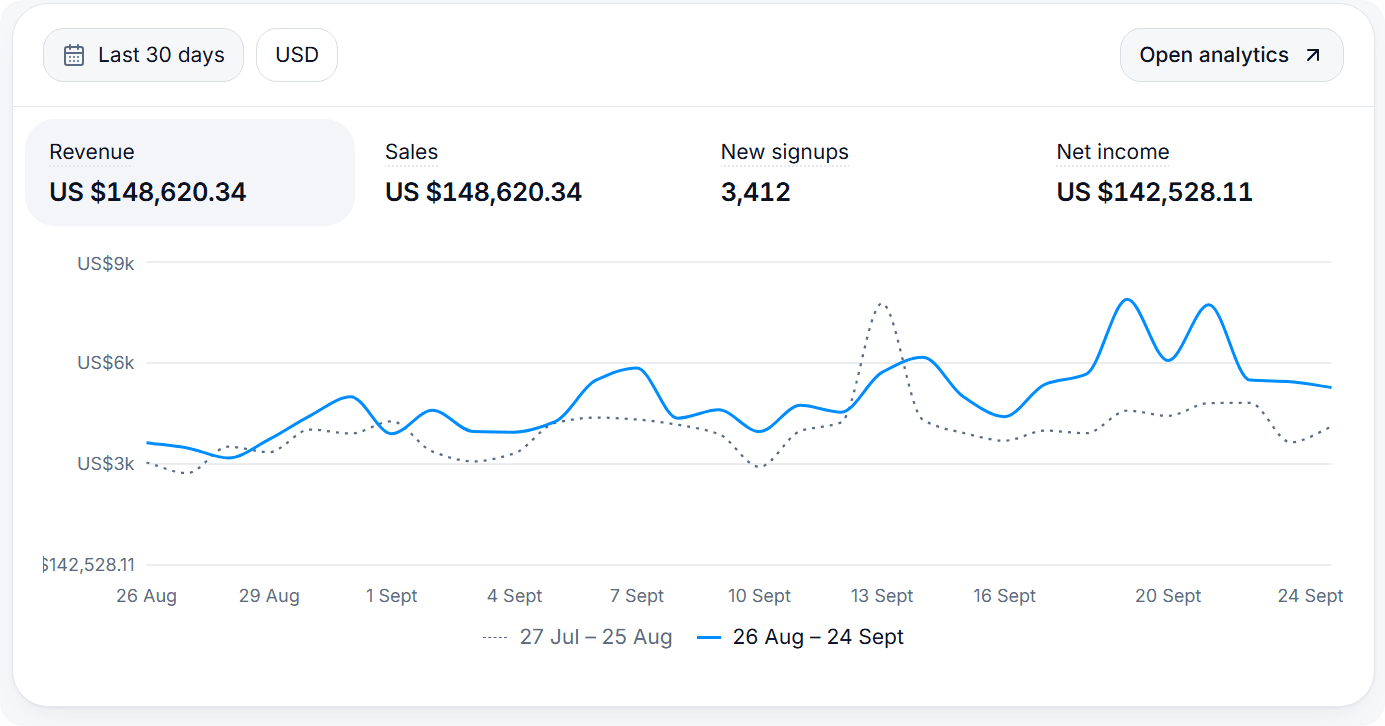
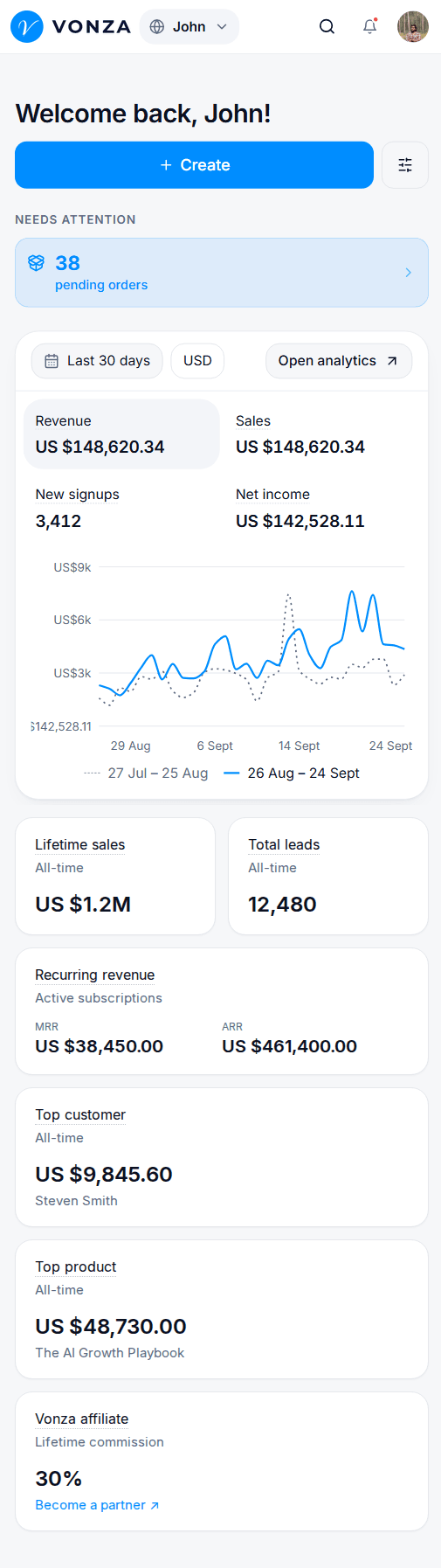
Across all your funnels, the Analytics screen shows visits, sign-ups and sales and the 50 busiest pages. What Vonza's counters do not record: new users, engagement time, time on page, countries and states. For those, use the Google tag.
Putting it together
A sensible set-up for a creator running paid traffic:
- Facebook Pixel id, with Page view, Lead and Purchase ticked.
- Google tag with the G- id for Analytics 4.
- Google Ads conversion through GTM, if you run Google Ads.
- UTM tags on every link you post, with a consistent naming habit.
- The funnel's Stats as the daily view, the step-by-step view as the weekly review.
Then improve the step with the biggest drop-off with a split test, which the guide to split-testing a funnel step covers. The pixel makes the ad platform learn from the winner; the split test makes the winner.
Privacy and consent
The funnel's checkout has optional extras such as a terms checkbox and reCAPTCHA, and the opt-in step can carry a consent checkbox. Whether you need a cookie banner for your pixels depends on where your visitors are; if you do, load the tags through a consent tool in the head code box or in Google Tag Manager rather than directly.
The sales funnel page covers the funnel as a whole, and the analytics page shows what Vonza reports across your account. Open Funnels, paste your ids into Tracking and publish. New to Vonza? Start a 14-day free trial.